Install your Executive Assistant
Setup takes under an hour. These five steps come first, then your assistant guides you through the rest of setup in Claude. You can stop at any point and pick up where you left off by typing "set up my EA" again. Nothing is sent from your inbox until you've seen a practice run and said yes.
You need: a current paid Claude plan (Pro, or Max to check every 15 minutes; free plans can't finish setup), the Claude desktop app, signed in, and a Gmail or Google Workspace email account.
1. Download the zip
Click the download button in your purchase email and save the file. Don't unzip it.
You'll see: a file called epic-ea-foundation- followed by a version number and .zip in your Downloads folder.
Stuck? If the button has expired or won't download, reply to your purchase email and we'll send a new link.
2. Upload it into Claude
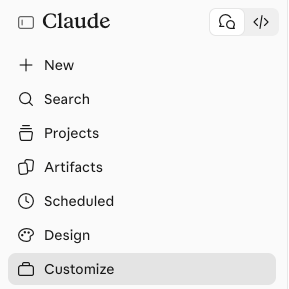
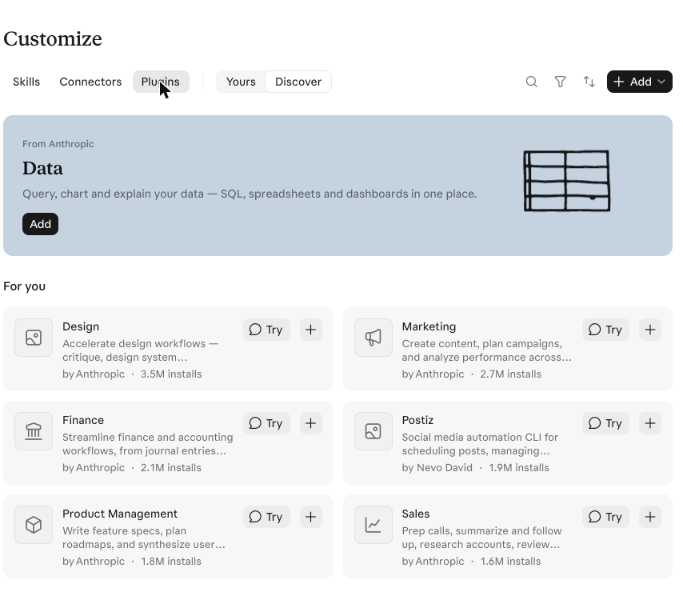
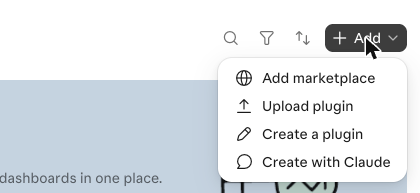
Open the Claude desktop app. Click Customize, the last item at the bottom of the left sidebar. The Customize page opens with three tabs at the top: Skills, Connectors and Plugins. Click Plugins. Then click the black "+ Add" button at the top right of the page and choose "Upload plugin" from the menu that opens. Pick the zip from your Downloads folder. Don't unzip it first.
You'll see: "epic-ea-foundation" in your list of plugins, switched on.
Stuck? If you can't see Customize or Plugins, update the Claude app to the latest version and restart it. If the upload is refused, check you chose the zip itself and didn't unzip it.
3. Connect Gmail, Google Calendar and Google Drive
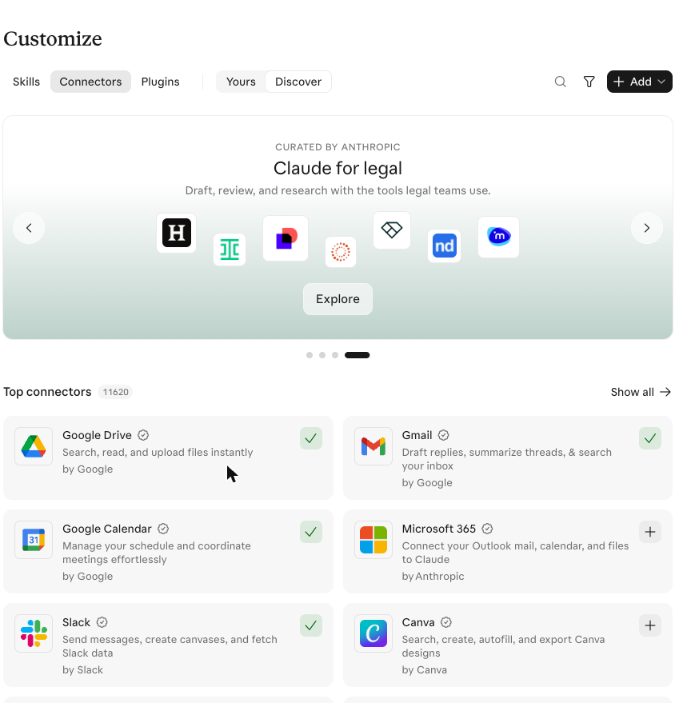
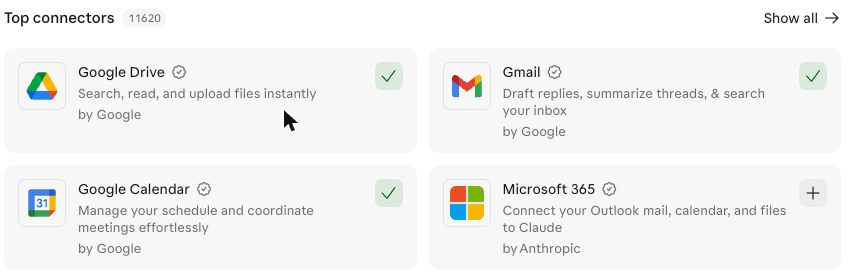
In Claude, click Customize, then the Connectors tab at the top (or open https://claude.ai/customize/connectors). Find Gmail under Top connectors. If you can't see it, use the search icon at the top right of the page. Click the "+" at the top right of the Gmail card. When Google asks, pick the email account you want your assistant to look after, then click Allow. Do the same for Google Calendar and Google Drive, with the same account. Drive holds your assistant's settings and notes when it runs in the cloud.
You'll see: a green tick in place of the "+" on all three cards: Gmail, Google Calendar and Google Drive.
Stuck? Google lists a lot of permissions; that's normal. If you picked the wrong account, click the connector, disconnect it and connect again.
4. Type "set up my EA"
Start a new conversation in Claude and type: "set up my EA"
You'll see: your new assistant introduces itself and asks what you'd like to call it. It then asks quick questions, one at a time (about 15 minutes in all), each with a suggested answer you can accept with "yes".
Stuck? If Claude doesn't recognise it, check the plugin is switched on in Customize, then Plugins, and start a new conversation.
5. Choose cloud or computer, then approve
After the questions and a check of your connections, your assistant asks where it should run. Choose cloud unless you have a reason not to: it keeps working with your computer shut. Computer runs only while your computer is on and the Claude app is open.
You'll see: a practice run over your last 20 emails first, showing what it would do with each one. Once you say yes, step-by-step instructions to set its schedule.
Stuck? Say "I'm stuck" or "where was I?" in the conversation and it will take you through the next single action.
Help
- Reply to your purchase email and we'll answer within 2 business days.
- Your purchase includes 12 months of updates.
Still stuck? Book a call with Rob: https://book.epicagile.com/rob